Git
Config File
Git can save config files on three different stages with a different scope:
local - global - system
Local has the highest scope and overrides all others, system has the lowest scope.
List config files
From all scopes
git config -l
Show scope of all entries
git config -l --show-scope
List config file local, in .git folder
git config --local -l
List config file global
git config --global -l
List config file from system
git config --system -l
Manipulate config files
Delete variable (example: user name) of config file (local)
git config --local --unset user.name
Set the value for pull in the config file
git config pull.rebase false
Set shortcut for command
git config --global alias.s status # git s would print the status

# "!" is needed to run the commands as shell commands
# For windows single quotes are needed ('') instead of double quotes ("")
git config --global alias.ac '!git add -A && git commit -m' # git ac "message" would add and commit
Config name and email
git config --global user.name "Your Name"
git config --global user.email "mail@example.com"
Set “main” as default name for new repositories
git config --global init.defaultBranch main
Basic Commands For A Local Repository
Initialize with branch main instead of master
git init -b main
Git add and commit shortcut
git commit -am "message"
Reset staged files
# Only remove staged file(s), keep changes in the workspace
# Old way
git reset < file > # Remove one file from stage area, keep workspace
git reset or git reset HEAD # Remove all files from stage area, keep workspace

# Modern way
git restore --staged < file > # Remove one file from stage area, keep workspace changes

# Caution: destructive methods, remove file(s) form stage and clean workspace (changes will be lost)
# Old way
git checkout -- < file > # Remove one file from stage area, clean workspace
git reset --hard # Remove all files from stage area, cleans workspace

# Modern way
git restore < file > # Remove one file from stage area, cleans workspace
Display Info
Get git Version
git --version
Git log with flags, reflog
git log --graph --oneline --decorate
Show last actions which changed the head of the current branch
git reflog
Commit Related Commands
Allow empty commit
Commit without any code changes, e.g. for testing purpose of github actions
git commit --allow-empty -m "test deploy pipeline"
Undo local changes in the working directory (back to state of last commit)
Only affects the working directory and not the staging area or the commit history
git restore . // works only for the current directory and subdirectories
git restore :/ // starts from the root of the repo
or (before git version 2.23)
git checkout -- .
Undo but keep changes in a special area and use them later with “git stash pop” or remove them with “git stash drop”
git stash
For multiple stashes
1. git stash save < name >
2. git stash list // find the saved stash
3. git stash apply < index >
Back to the state of the current commit locally
Depending on the flag, only affects the working directory or staging area, not the commit history
- Soft reset (working directory and staging area stay unchanged)
git reset --soft HEAD
- Mixed reset (default, working directory stays unchanged but files are unstaged)
git reset HEAD or git reset --mixed HEAD
- Hard reset (all changes are discarded, in working directory and staging area)
git reset --hard HEAD
Remove a commit - back to the state of the previous commit locally
Removes the current commit from the branch
- Soft reset (working directory and staging area stay unchanged)
git reset --soft HEAD~1
- Mixed reset (default, working directory stays unchanged but files are unstaged)
git reset HEAD~1 or git reset --mixed HEAD~1
- Hard reset (all changes are discarded, in working directory and staging area)
git reset --hard HEAD~1
or use a commit hash instead of HEAD
Notice: After git reset is used for other than the current commit and those commits have been already pushed to github,
for pushing the update the —force flag is needed. This would rewrite history and is not encouraged in teams.
Navigate to old commits (Moving HEAD)
# 1. Go to a specific commit
git checkout < hash >
# or
git checkout HEAD^ # go to previous commit
# or
git checkout HEAD~1 # go to previous commit, 2 for second to last, etc.

# 2a. Since a detached head is created, to continue with other commits you need to connect to a branch again
git switch -c < new branch name >
# or
git checkout -b < new branch name >

# 2b. Or jump back to the last active branch
git switch -
# or
git checkout < last active branch >
Undo changes of a commit by creating a new commit
Does not remove the original commit, instead it will create a new commit that undoes the changes made in the specified commit, preserving history
Starts an editor which needs a commit message for the new commit only changes of the targeted commit are undone, not of following commits
git revert HEAD or git revert <hash>
Take back the last x commits (example reverts last 3 commits)
Use flag -n and manually commit with a message otherwise a commit message is necessary for each commit
1. git revert HEAD~2..HEAD -n
2. git commit -m "Reverted last three commits"
Change Commit Messages (Locally)
Change last message
git commit --amend -m "new message"
Change random commit message
1. git rebase --interactive origin < branch >
2. reword < commit > changed < message > # Inside the editor
3. # confirm new name in file that opened automatically
Add new files to the last commit (without new message)
1. git add .
2. git commit --amend --no-edit
Rewrite history (completely remove original commit)
Disruptive and not recommended on shared branches
1. git reset --hard HEAD~1 # removes last commit locally
2. git push --force
File Related Commands
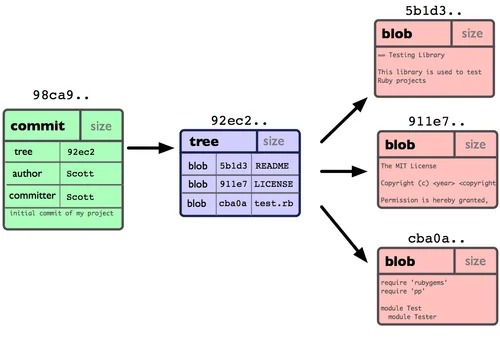
Display files and git database after commit (tree, blob)
Show trees/blobs
git cat-file -p <hash>
Show older version of a file (path from the top of the repository needs to be added before the file)
HEAD~
git show <hash>:<file>
Search for commits that changed a certain file
git log --oneline --stat -- <file>
Restore an old version of a file
Instead of hash, HEAD~
git restore -s <hash> <file>
or
git checkout <hash> -- <file>
Restore file and save it in a new file (current state of the file stays untouched)
git show <hash>:<file> > <new file>
Branch Related Commands
Inspection & Basics
Show local and remote branches with additional info
git branch -vv
Creating a new branch
git branch <name>
Rename branch
git branch -m <new name>
Navigation & Creation
Creating a new branch and switching to the new branch
git checkout -b <name> or git switch -c <name>
Create a new branch from another branch
git checkout -b <new branch> <existing branch>
Create a new branch from a specific commit
1. git log # copy commit hash
2. git branch < new branch > < hash >
Create an empty branch and switch to it
git switch --orphan <branch>
Branch Repositioning (Advanced)
Manipulating branch pointers without necessarily switching to them
Force-move a branch to a different commit (without checking it out):
# Note: you can not reposition the active branch
git branch -f < branch-name > < target-hash-or-ref >
# Example:
git branch -f feature HEAD~1 # moves the feature branch one commit back while you stay where you are
# You could match the state of one branch to another
git branch -f feature main # feature has now the exact state of main
Remote Operations
Pull non existing branch locally from remote
1. git pull origin < branch > # Branch is locally not yet visible
2. git checkout < branch > # After checkout branch will be visible
Pull from specific branch
git pull origin <branch name>
Push to non existing remote branch
git push -u origin <branch name>
Push all local branches
git push --all origin
Delete branch remotely
git push origin --delete <name>
Cleanup & Maintenance
Cancel a current merge conflict
git merge --abort
Delete branch locally
git branch -d <name> use -D to force delete unmerged branches
Remote Repository Related Commands
Connecting local repo to empty remote repo
git remote add origin <url>
Override existing connection to remote repo
git remote set-url origin <new url>
Remove connection to remote repo
git remote remove origin
Show link to remote repo
git remote -v
Fix “refusing to merge unrelated histories” error
git pull --allow-unrelated-histories
Push local files to remote and override the commit (changes that weren’t pulled are lost)
git push origin <branch> --force
Delete file from git but keep it locally
1. git rm --cached < filename > # grab the latest code from the remote repo
2. git commit -m "removed file" # override local code with remote code
3. git clean -df # delete random untracked files
Reset Local Branch
Reset your local branch to exactly match the state of the remote branch and skip local changes
1. git fetch origin
2. git reset --hard origin/< branch >
Fetch And Compare
Fetch and check differences between the local branch and the fetched remote branch
git fetch --all
git diff < branch > origin/< branch >
Rebase
Rebase and squash (interactive)
1. Checkout to a desired branch
2. git rebase <branch> --interactive
3. Change the command for each commit as needed (pick, reword, squash ...)
4. Save and close file (for vim editor: <:wq> (colon enters command mode, w=write, q=quit))
5. New file gets opened prompting to update the commit messages (a combination of all squashed messages)
6. Save and close the file
Rebase without interactive
1. Checkout to desired branch
2. git rebase <branch>
3. Resolve possible merge conflict (for each commit)
4. git add . and git rebase --continue
5. Write commit message and save file (for vim editor: <:wq> (colon enters command mode, w=write, q=quit))
6. Repeat steps 3 - 5 until all conflicts are resolved
7. git push (if remote branch should be updated)
Cancel A Rebase
git rebase --abort
or, if not working
git rebase --quit
Local Workflows
Stash
Undo local changes but keep them in a special area and use them later with “git stash pop” or remove them with “git stash drop”
git stash
For multiple stashes
1. git stash save <name>
2. git stash list // find the saved stash
3. git stash apply <index>
Worktree
Use this when you want to make changes in one branch without switching away from your current one
Git creates a new folder on your hard drive, fully connected to the same repository
Note: target branch-name is the name of the branch you want to checkout, e.g. main
Important: the folder-name should be outside the parent directory, hence the ”../“
You can now switch to other branches (not to the one already checked out before doing worktree)
git worktree add ../<folder-name> <target branch-name>
Remove a worktree safely (avoid deleting worktree folders manually with rm -rf)
git worktree remove ../<folder-name>
or simpler, if you are in the directory that should be removed
git worktree remove .
Check all existing worktrees
git worktree list
Miscellaneous
Removing node modules from remote
git rm -r --cached node_modules
git commit -m "Removed node_modules"
git push origin master
Various
Ignoring whitespaces for merging
git merge -X ignore-all-space
Show complete hash from short hash
git rev-parse <short hash>
Open browser-based version of vs code
1. Go to a repository on github
2. Hit the period key "."
3. If terminal is needed, create new codespace in the cloud
List all git ignored files of a directory
git check-ignore *
Additionally show the gitignore rule
git check-ignore -v *
List all git ignored files of a repository
git check-ignore -v **/*
Check if one file is ignored (returns filename if ignored)
git check-ignore <filename>
Clean up untracked files
Show what would be removed
git clean -n for entries of .gitignore git clean -nX
Remove all untracked files
git clean -f files and directories git clean -fd
Remove only files listed in .gitignore
git clean -fX files and directories git clean -fXd
Fix Arrow Symbol in Folder on Github
Problem occurs when the folder with the arrow has a nested .git inside locally
Remove the .git (rm -rf .git) and execute the next line (name of the folder is the one with the nested .git)
git rm --cached <folder name>
Afterwards add, commit and push
Download Folder from Github
Paste the link to the folder to download on the following page:
https://download-directory.github.io
If it’s a private repository create an access token and paste it under “token” on the website
Create an access token on Github:
Profile menu / Settings / Developer settings / Personal access tokens
Tick checkboxes accordingly to grant access rights